header.menu.label header.menu.close

Integrating Xaver forms to ClickDimensions

Seyfor websites mainly contain forms created using the Form builder in the Xaver system. These forms then generate requests, which are transferred via a web service to your ClickDimensions tool for recording leads.

Where's the setting?

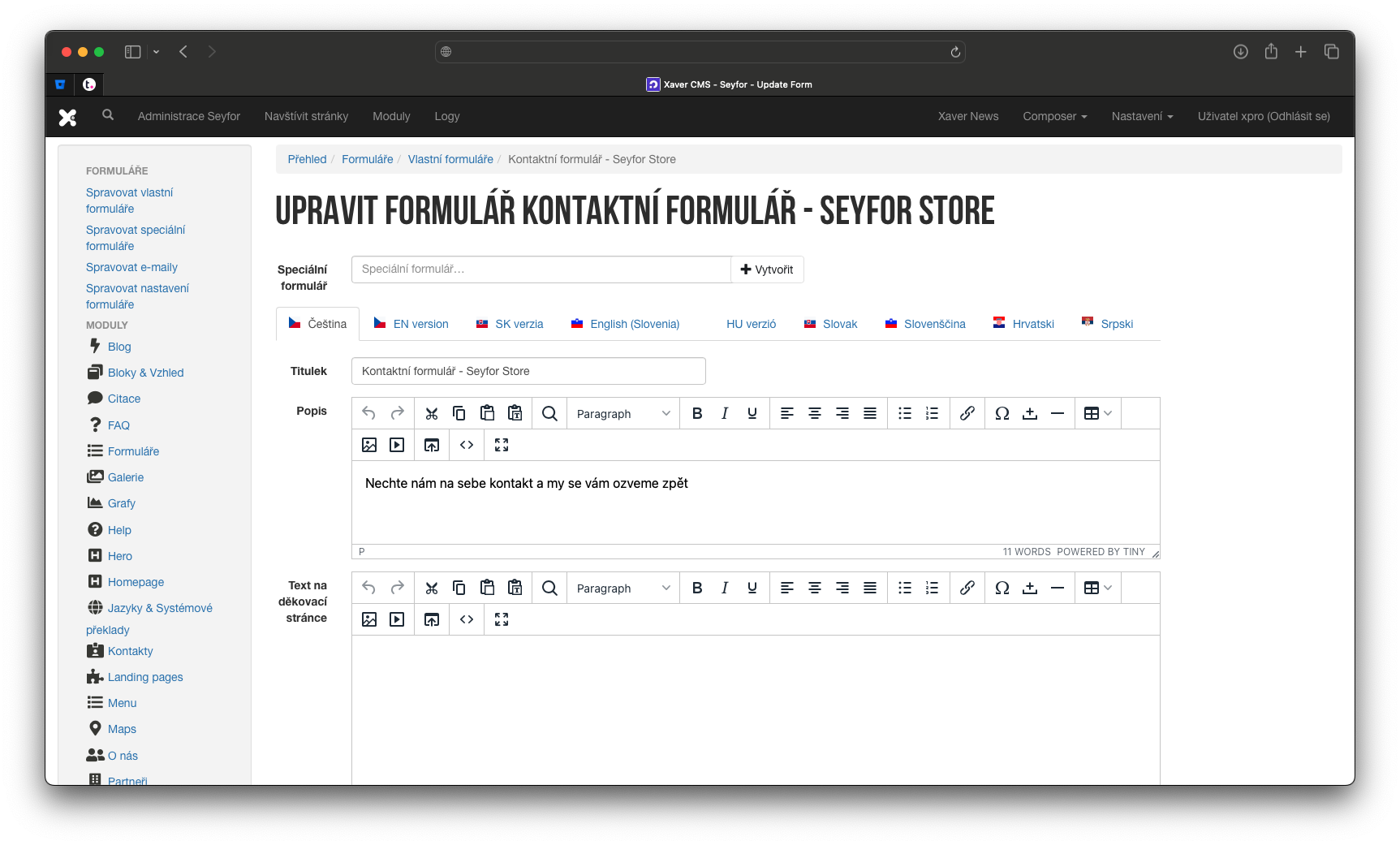
All forms are managed in the Xaver CMS in the Forms module, unless they are embedded forms from the systems like Sfinx, NetResults, etc. Each form then has several levels of settings:

  • The form itself – the record of the form itself, i.e. the highest level at which the text of the form, its behavior and the data layer are defined.
  • Form section – nested record under the form, divides the form into logical units according to the nature of the nested items of the form (section with text fields, section with a note, etc.)
  • Form items - record nested in sections, determines the final list of form items. A form item can mean a text field, a message field, radio buttons, checkboxes, etc.)

All forms are managed in the Xaver CMS in the Forms module, unless they are embedded forms from the systems like Sfinx, NetResults, etc. Each form then has several levels of settings:

  • The form itself – the record of the form itself, i.e. the highest level at which the text of the form, its behavior and the data layer are defined.
  • Form section – nested record under the form, divides the form into logical units according to the nature of the nested items of the form (section with text fields, section with a note, etc.)
  • Form items - record nested in sections, determines the final list of form items. A form item can mean a text field, a message field, radio buttons, checkboxes, etc.)

Essentials to integrate forms into CDi

When transferring leads to CDi, we can't do without data that identifies the form as such, but above all, the individual fields of the form. This data must be obtained from the CDi.

Form ID

This is the unique ID of each form, which consists of alphanumeric characters. For example:

  • aJzYljzSUyz7aAjkwcVxg

Form item label

Using the form item label, it is possible to recognize where to correctly include data from the Xaver form in the ClickDimensions form.

When transferring leads to CDi, we can't do without data that identifies the form as such, but above all, the individual fields of the form. This data must be obtained from the CDi.

Form ID

This is the unique ID of each form, which consists of alphanumeric characters. For example:

  • aJzYljzSUyz7aAjkwcVxg

Form item label

Using the form item label, it is possible to recognize where to correctly include data from the Xaver form in the ClickDimensions form.

Where to fill in CDi data?

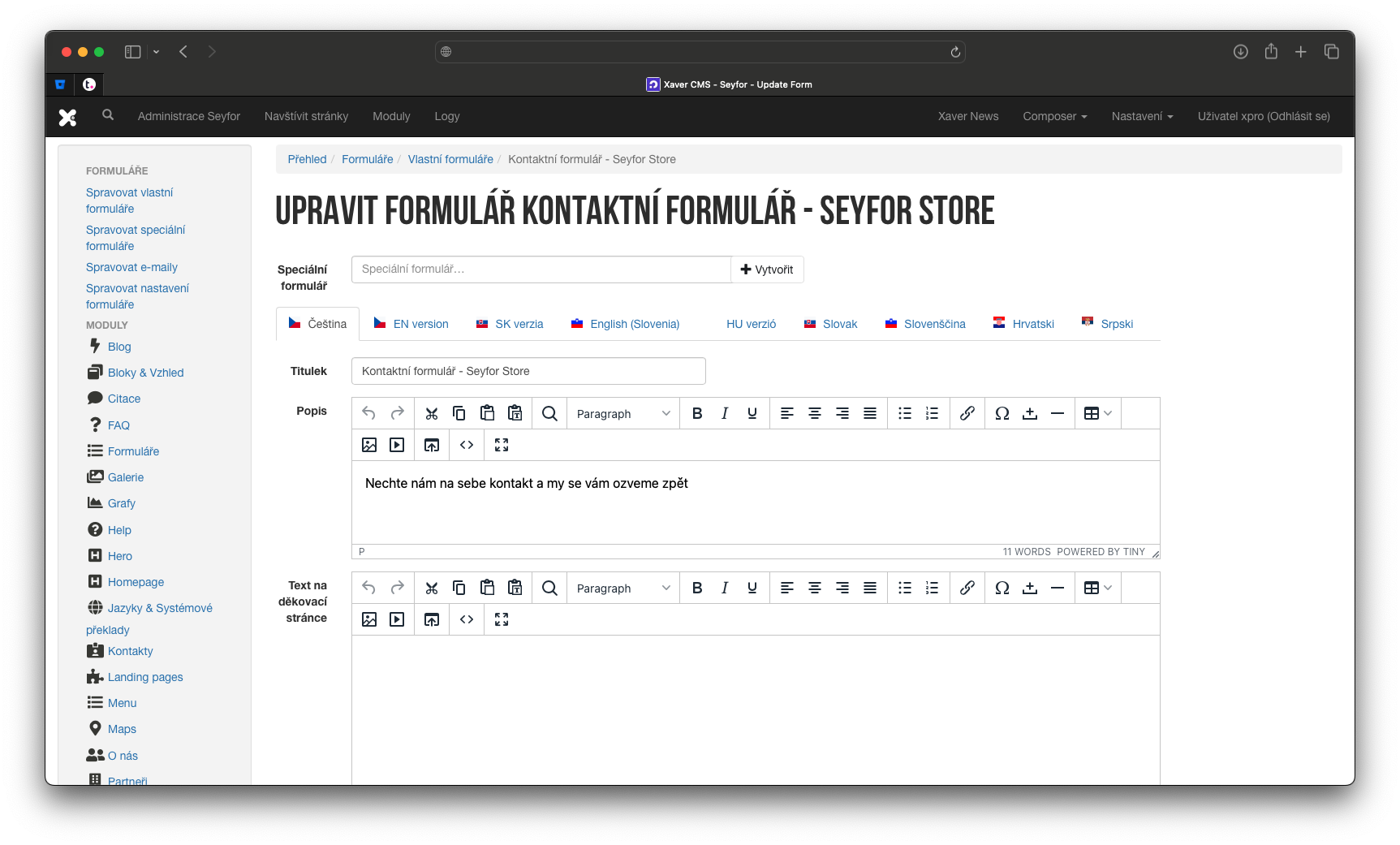
As soon as the identifier of the form and the labeling of the individual items of the form are available, it is possible to proceed to fill in the data in Xaver CMS. All editing work takes place in the Forms module on the editing detail of a particular form.
Form ID

In the Forms module click on the form update button. The field for filling in the ID of the form is located at the editing level of the form itself and the field is called "ID from external application"External form ID". Fill in the ID and click the Save button to save the changes.

Form item label

Go to the Forms module to edit the form, then to edit the form section (all form fields are typically located in text field type section), where you can edit individual form items. The modification consists in updating the "Click Dimension Item ID" field and entering the tag value from CDi. After completing the modifications, it is recommended to successively click the Save button for the modified items of the form, then for the form section and the form itself – this will guarantee the clearing of the form cache across all entities.

As soon as the identifier of the form and the labeling of the individual items of the form are available, it is possible to proceed to fill in the data in Xaver CMS. All editing work takes place in the Forms module on the editing detail of a particular form.

Form ID

In the Forms module click on the form update button. The field for filling in the ID of the form is located at the editing level of the form itself and the field is called "ID from external application"External form ID". Fill in the ID and click the Save button to save the changes.

Form item label

Go to the Forms module to edit the form, then to edit the form section (all form fields are typically located in text field type section), where you can edit individual form items. The modification consists in updating the "Click Dimension Item ID" field and entering the tag value from CDi. After completing the modifications, it is recommended to successively click the Save button for the modified items of the form, then for the form section and the form itself – this will guarantee the clearing of the form cache across all entities.